If you’re planning to register for the TOEFL Essentials test, review and confirm you meet these requirements before registering for a smoother test day experience. If you don't meet these requirements on test day, you won't be able to test. In that event, you won't receive a refund or a free reschedule.
Equipment and Environment Requirements
Download the ETS Secure Browser by selecting one of the links below.
Then run the file to complete the installation. While in the browser, click the Equipment Check button to confirm that your equipment is ready for test day.
View the screenshots below to learn what you can expect when running the ETS Secure Browser.
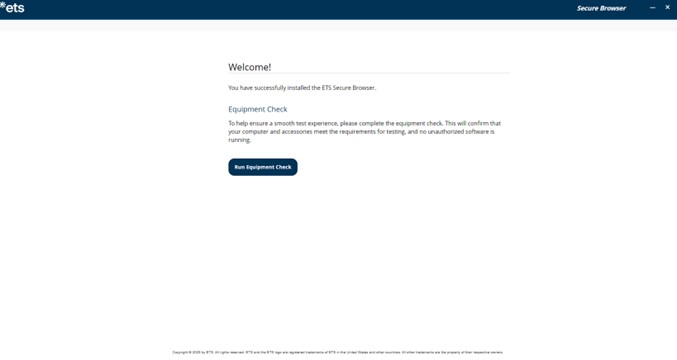
Once you open the ETS Secure Browser, you’ll be brought to this welcome screen. From here, you can run the Equipment Check.
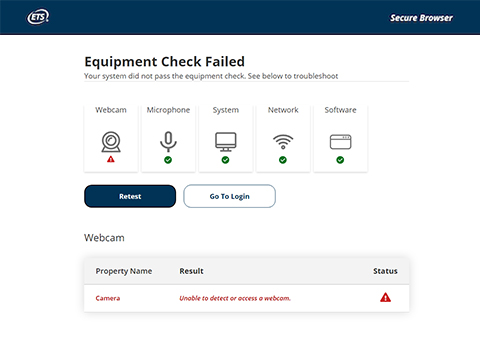
Upon completion of the Equipment Check, you’ll see the status of your equipment. If any parts have failed, you’ll see a red triangle status indicator, as well as tips for how to resolve the problem.
The equipment check includes a bandwidth check. Since bandwidth differs depending on time of day and network usage, run the equipment check at several different times to see which time works best. Additionally, you should run the check on the same day of the week and the same time of day as your test. That way, you're checking your bandwidth in an environment similar to what you would experience when you test. Watch the helpful Tech Tips video on the At Home Test Day page.
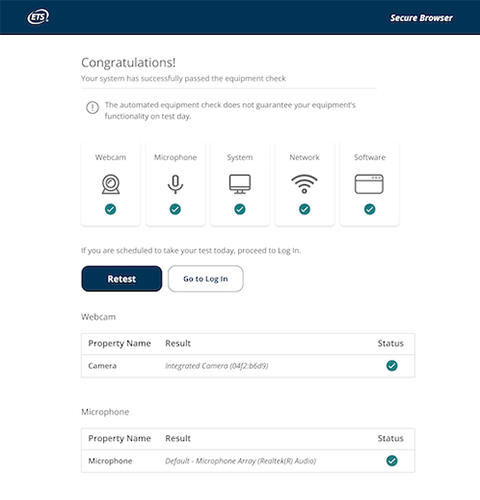
When you have successfully passed the equipment check, you’ll arrive at the Congratulations page.
If your check fails and you can't resolve the issues yourself, visit Equipment Check Support for troubleshooting tips.
Live Help Desk Technicians are available to assist you prior to test day.